Add MyLiveChat to your Magento store
MyLiveChat provides an easy way to implement MyLiveChat on your Magento online store in a few minutes. MyLiveChat helps your team answer visitors quickly, collect offline messages, and keep support conversations organized. It lets your team answer visitors in real time, see helpful visitor context, and keep every conversation available for follow-up.
Use this guide to add MyLiveChat to your Magento online shop. If you do not have a MyLiveChat account yet,
create a free MyLiveChat account.
Start free
Step 1. Get your MyLiveChat code
Sign in to the MyLiveChat web console and click
Deployment menu on the left. Choose Chat Button tab and copy the MyLiveChat
code.
Step 2. Add MyLiveChat Block
Now sign in to your Magento admin panel, click CMS -> Static Blocks menu on the top, click Add New Block button.
On editing page, click Show/Hide Editor button to hide editor, insert MyLiveChat code to the text area.
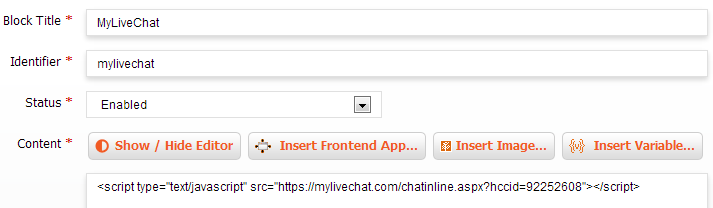
Step 3. Add MyLiveChat Widget
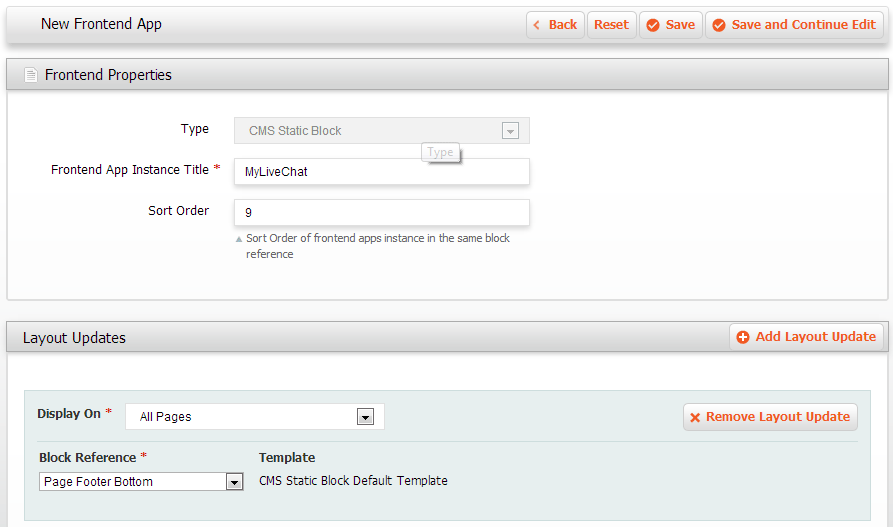
Click CMS -> Frontend Apps menu on the top, click Add New Frontend App Instance button, you need to:
- Select Type
- Select and input Frontend Properties
- Select Layout Updates options
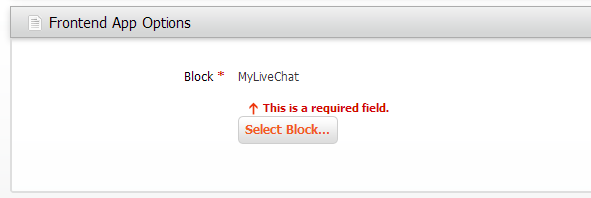
- Edit Frontend App Options, select MyLiveChat block from the popup block list
Check that live chat is working
Save and place the block, then open your store in a private browsing window. A private window matters: as a signed-in
administrator you may see a different version of the page than your visitors do.
- Look for the chat launcher on the page. If it is missing, view the page source and
search for mylivechat to confirm the code is really being served.
- Start a chat as a visitor and send a test message.
- Sign in to the web console and confirm the message arrives
and that you can reply.
- Close the chat and check the transcript is saved, so you know follow-up will work.
If your store caches pages, clear the cache before deciding something is broken. A cached
copy of the old page is the single most common reason a correct installation looks like a
failed one.
Common Magento setup mistakes
- The widget is assigned to one page. A widget can be scoped to a single page or layout. To get chat everywhere, assign it to all pages rather than a single CMS page.
- Full-page cache is still serving the old HTML. Magento caches storefront pages aggressively. Flush the cache after saving, or you will keep seeing a page without the chat code in it.
- Chat looks offline to everyone. The widget shows an offline form when no
agent is signed in. That is working as intended - set your hours and your offline
message so the page tells visitors when to expect a reply.
Make the chat window fit your store
Colours, position, language and the pre-chat form are all set in your MyLiveChat
dashboard, not in the Magento code, so you can change them without touching your store again.
See customization options for what can be
changed, and visitor monitoring if you want to
see which page a visitor is on before you reply.
Related guides
New to live chat? Start with
how to add live chat to your
website and the
live chat launch checklist.
Also useful: Using chat to recover abandoned carts.
Also useful: Answering order-tracking questions.
If you are worried about page speed, see
does live chat slow down your
website.
What's next?
After setup, sign in to the web console to answer visitors from your browser. You can also use the desktop app from the download page if your team prefers it.
Magento live chat FAQ
Do I need to add both the block and the widget?
The block holds your chat code and the widget decides where it is served. Both steps matter: a block with no widget is never rendered.
Will it appear on checkout?
Only if your widget applies to checkout pages. Magento treats checkout separately, so test it directly.
Will it slow down my store?
The chat code loads asynchronously, so it does not block your page from rendering. If you want to check that for yourself rather than take our word for it, measure your own pages before and after with your usual speed tool.
Is it really free?
Yes. One agent, unlimited chats and unlimited websites are free forever, with no credit card required.
Any questions?
If anything is unclear, contact our support team from the chat button on this page or visit the Support page. We can help you choose the right setup path.